 NULLSHAPE
Open the app
NULLSHAPE
Open the app
01The stack: nothing is final
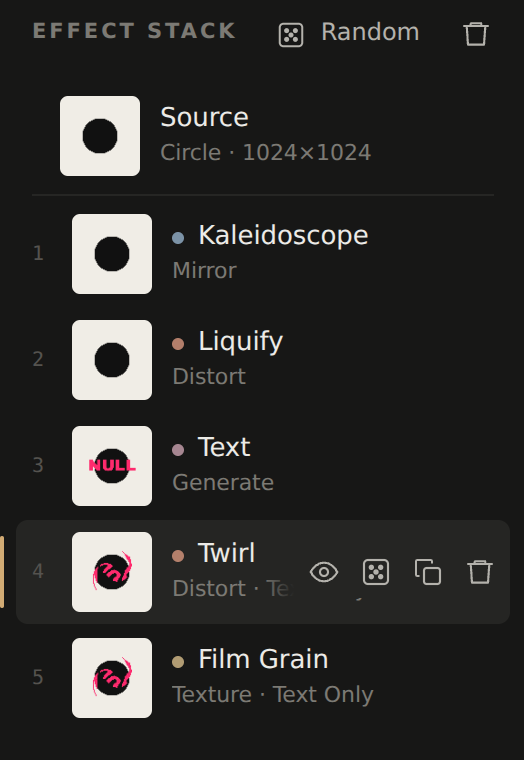
Your piece is the Source (the start graphic) plus a stack of steps, each one working on the result of the ones before it.
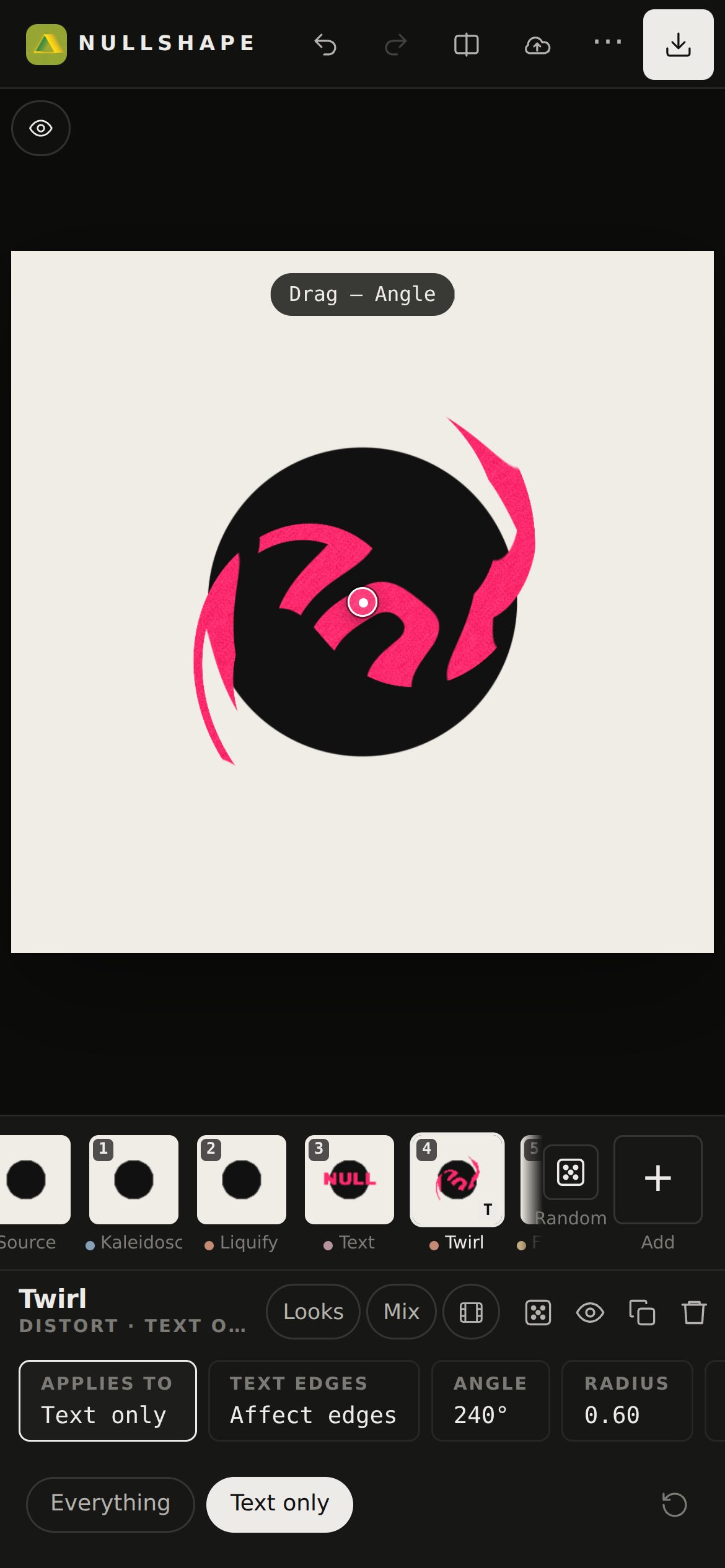
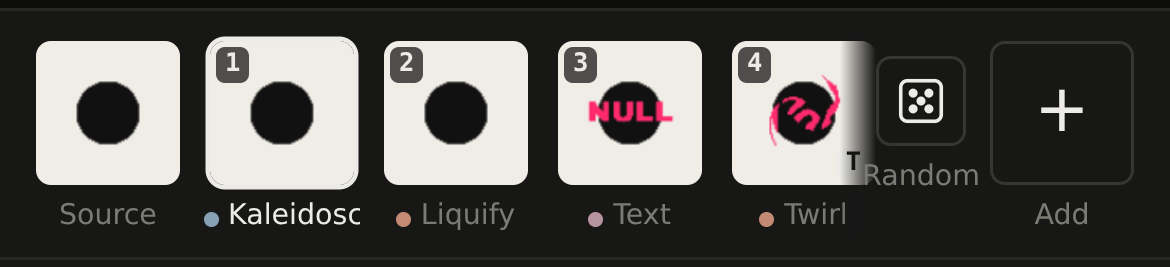
- The steps are the tiles in the strip at the bottom, left to right. Tap one to select it; its settings appear below.
- Tap a setting to get its slider. Double-tap the slider to put it back to default.
- Hold a tile, then drag it to change the order. The order changes the result.
- The icons next to the step's name: randomise (dice), hide (eye), duplicate, delete.
- Change the Source at any time, even at the end: every step re-applies to the new start.
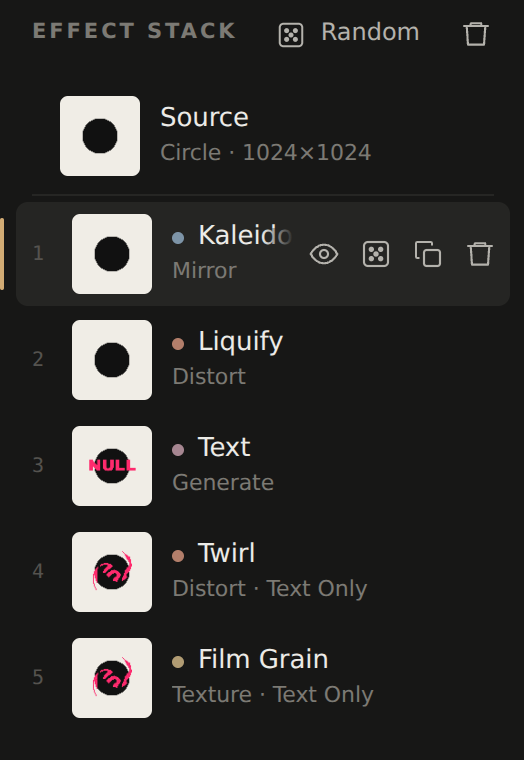
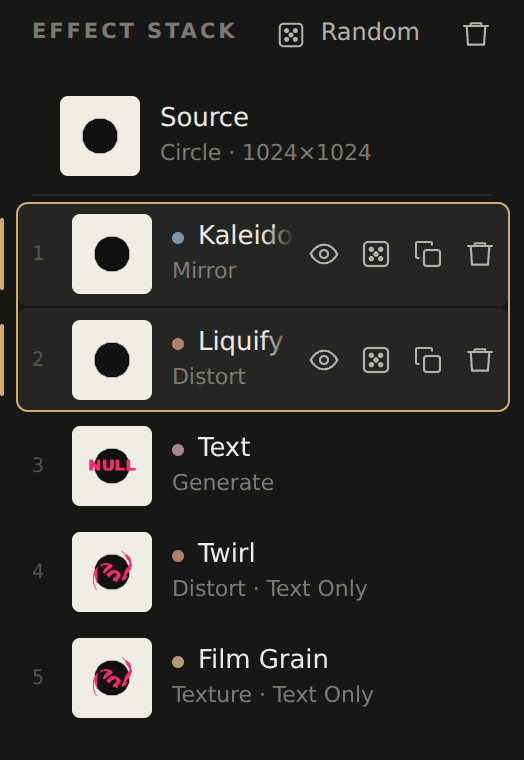
- The steps are the rows on the left, top to bottom. Click one to select it; its settings appear on the right.
- Drag a row to change the order. The order changes the result.
- Hover a row for its icons: hide (eye), randomise (dice), duplicate, delete.
- Double-click a slider to put it back to default.
- Change the Source at any time, even at the end: every step re-applies to the new start.
- Compare: hold the compare button (or \) to see the source without any steps.
- Bake stack into source (⋯ menu, or the bake icon) flattens everything into a new start graphic, so you can keep going on top of it.
- Clear all effects empties the stack and keeps the source.
Undo goes back as far as you like.
02The start graphic (Source)
Select Source (the first tilerow) to choose what the steps work on.
- Start with a shape or pattern: Square Circle Triangle Cross Text Vector Checkerboard Stripes Grid Gradient Spectrum Noise.
- Set its Foreground and Background colours. Tap a colour for the full picker, with a hex field.
- Text and Vector starts can be edited right there: type the words, or drag the shape's points (drag on a line to add one, double-tap a point to delete it).
- Use a photo (the Photo buttonthe Image button at the top, or drop one on the picture). Then Crop: pick an aspect (1:1, 4:5, 16:9…), drag the picture to choose the part and pinch or Ctrl+scroll to zoom.
- Aspect and Resolution set the size of the artboard.
- Convert to layer one turns the start graphic into the first step, so you can pick a new source underneath. The picture stays the same.
03Adding effects
- Add (the + tile at the end of the stripA, or Add effect under the stack) opens the effects, in groups: Generate, Distort, Mirror, Glitch, Texture, Color and 3D.
- Search by name at the top. The new step goes in right after the selected one.
- Effects marked Pro are free to try. Exporting a piece that uses one needs Pro.
- A few effects run on the processor instead of the graphics chip; they're marked, and get slower at very high resolutions.
- Add adjustments (⋯ menu) adds Image Adjust: exposure, brightness, contrast, highlights, shadows, temperature, saturation and more.
04Random, three ways
The Random tileRandom, at the top of the stack
Adds a new random step: a surprise effect with surprise settings. Keep pressing it to build up a piece. Keyboard: Shift R
The dice on a step
Keeps that effect but rolls new settings for it. With several steps selected, it rolls them all. Keyboard: R
Looks
Tap Looks on a step for a grid of variations to pick from. Shuffle deals new ones.
Quick Looks on a step shows a grid of variations to pick from. Shuffle deals new ones, and Wildness sets how far they go.
Didn't like it? Undo brings back what you had.
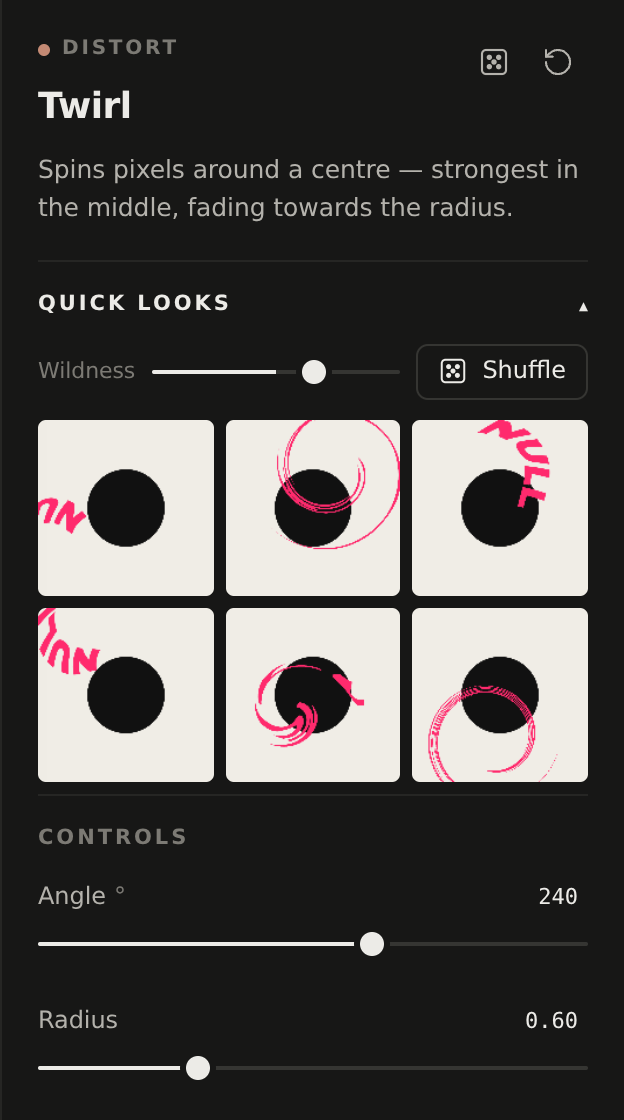
05Select several steps
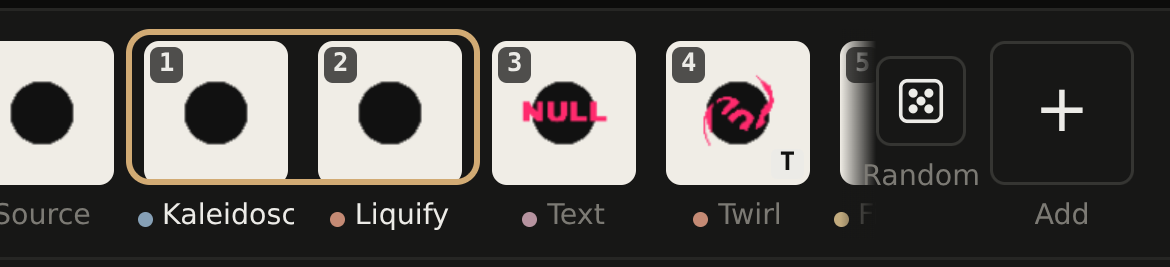
Hold one tile in the strip, and while you hold it, tap the others with a second finger. They join the selection.
- Keep holding and drag: the whole group moves together.
- The header then reads “2 steps selected”, with hide, duplicate and delete for all of them.
- Tap Done to go back to one step.
Ctrl-click (Cmd on a Mac) to add single steps, or Shift-click to select a whole run.
- Drag one of them: the group moves together. Or Alt ↑ / ↓.
- Hide, randomise, duplicate or delete them all at once, from the icons or with H R D Delete.
- Esc deselects.

06Layers: Text, Shape, Image
- Text, Vector Shape and Image (in Add → Generate) each start their own layer on top of what's below.
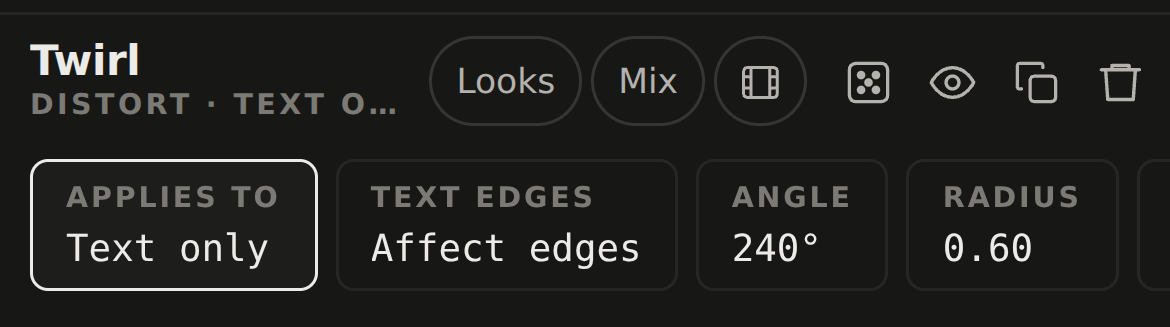
- Steps added after one of them apply to that layer only: twirl the word, not the background. Those tiles get a small T.
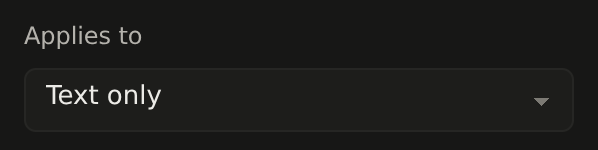
- Switch it per step with Applies to: Everything or Text only (or shape / image only).
- Image takes your own picture or logo. A PNG keeps its see-through parts; Remove background drops a plain one.
- All three have Shadow: a drop shadow or a glow, with colour, angle and blend mode.
07Mix: opacity, blend and mask
Every step has a Mix chip in its header section at the bottom of its settings:
- Opacity: how much of the step shows over what's below.
- Blend mode: Normal, Multiply, Screen, Overlay, Difference, Add, Subtract, Lighten, Darken, Exclusion, Hue, Color.
- Mask: where the step applies. Radial and Linear have a position, radius or angle, and feather; Brightness uses the light and dark parts of the input or of the effect.
- Invert mask swaps inside and outside. Drag the mask's dot on the picture to move it.
08Scenes: looks to move between
- A scene is a saved version of a step's settings.
- Save scene, change some settings, save New scene. Press Play: the step moves from one to the next.
- Tap a scene to jump to it. Change it, then Update. Until you do, a small dot marks the step as having unsaved changes.
- Apply to all copies the settings you just changed into every scene of that step. You choose which ones.
- Each step has its own scenes, so different steps can move differently.
Scenes live behind the film icon in the step's header.
Scenes sit in the step's settings on the right, under its controls.
09Movie: timeline and curves
Open Movie (the clapper icon) to make a video. Play it right on the picture (Space) and drag the bar to scrub. Set the Length and the Motion: Once Ping-pong Loop.
Timeline
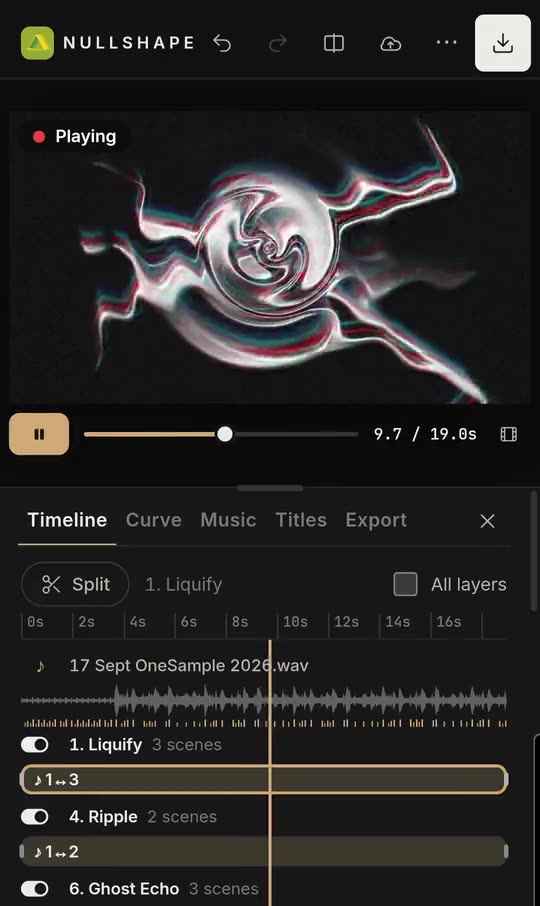
- One lane per step with scenes. Switch on All layers to show the others too, to bring them in and out.
- Drag a clip to move it, its edges to trim it, and the marks inside to change when each scene is reached. Edges snap to the music's hits.
- Tap a clip to edit it: Move over time from one scene to another (⇄ Reverse plays them the other way), Hold one scene, or React to music between a quiet and a loud scene.
- Fade in / Fade out (cut, 0.5, 1 or 2 s), and Handover between touching clips.
- Split at the playhead (S), Duplicate into the space after it, or Remove clip.
- Use these clip times on every layer, Trim movie to clips, or Reset to one clip over the whole movie.
Curve
- How a step travels between two scenes: even, punchy, slow start, pulse, or drag the points to draw your own. Step through the moves with the arrows.
- Use on all steps of this clip or Use everywhere; Back to even speed undoes it.
Titles
- Add Text, a Shape or your Logo on top of the movie. Drag it on the preview to place it.
- Font, colour, size, rotation and opacity. In and out times with an animation: Fade Slide up Zoom None.
- Pulse with the music makes it beat along. Logos have Remove background.
- Titles go into image exports too, unless you switch off Include titles there.
Export
- Frame rate 24, 30 or 60 fps; Size up to 4K; Quality Standard, High or Max.
- Preview full size on the canvas first, or go straight to Export MP4. Then download it, or Share / Save to Photos.
10Music
- Movie → Music: add a song from your device or Google Drive. Add track keeps several songs in the movie to try one at a time.
- Drag on the waveform to choose the part used. Set the Volume, and Fade in / Fade out.
- Scenes move Over time or With the music. With the music, Scenes per layer (quiet → loud) sets which scenes each step moves between.
- Per step, choose how its scenes move: React to music louder moments push it further through its scenes, Move over time follows the timeline, Hold stays put.
- So some steps can pulse with the beat while others drift slowly.
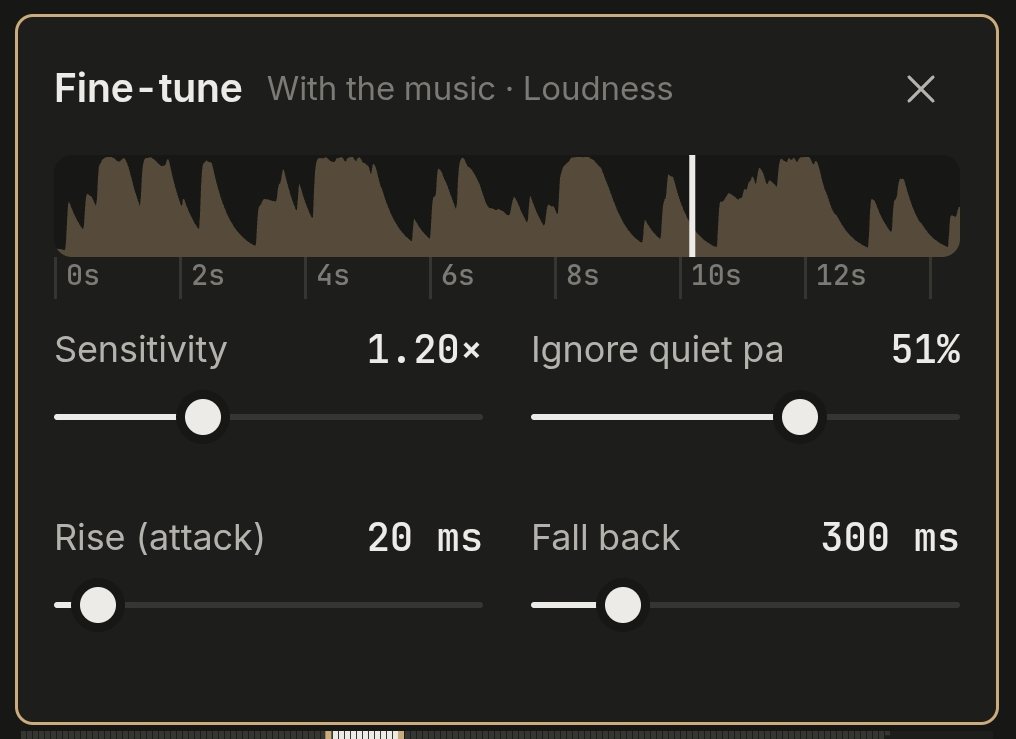
- Follow sets what a step listens to: Loudness, Hits or Bass hits. Fine-tune the reaction for more control.
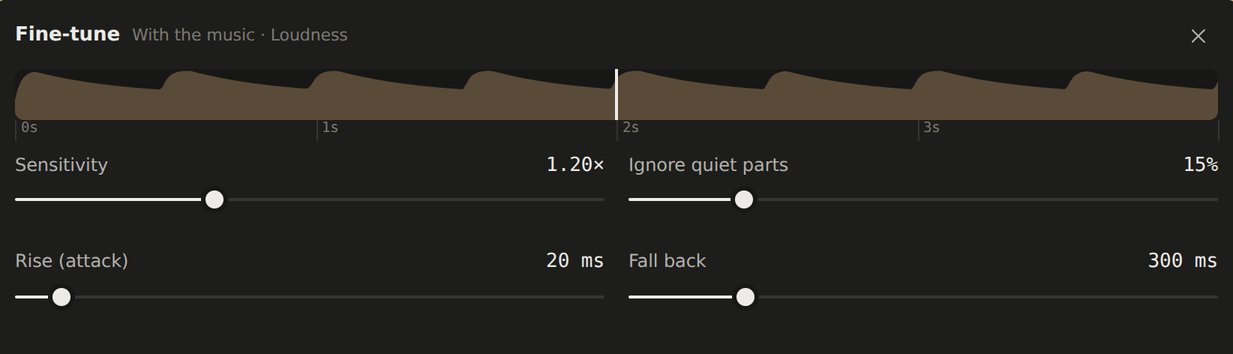
Fine-tune the reaction
- Sensitivity: how strongly the step reacts.
- Ignore quiet parts (or soft hits): anything below this level doesn't move it.
- Rise (attack): how fast it jumps when the sound comes in. Fall back: how slowly it settles again.
- The graph shows the reaction over the whole song, with the playhead on it.
Your music never leaves your device (or your own Drive).
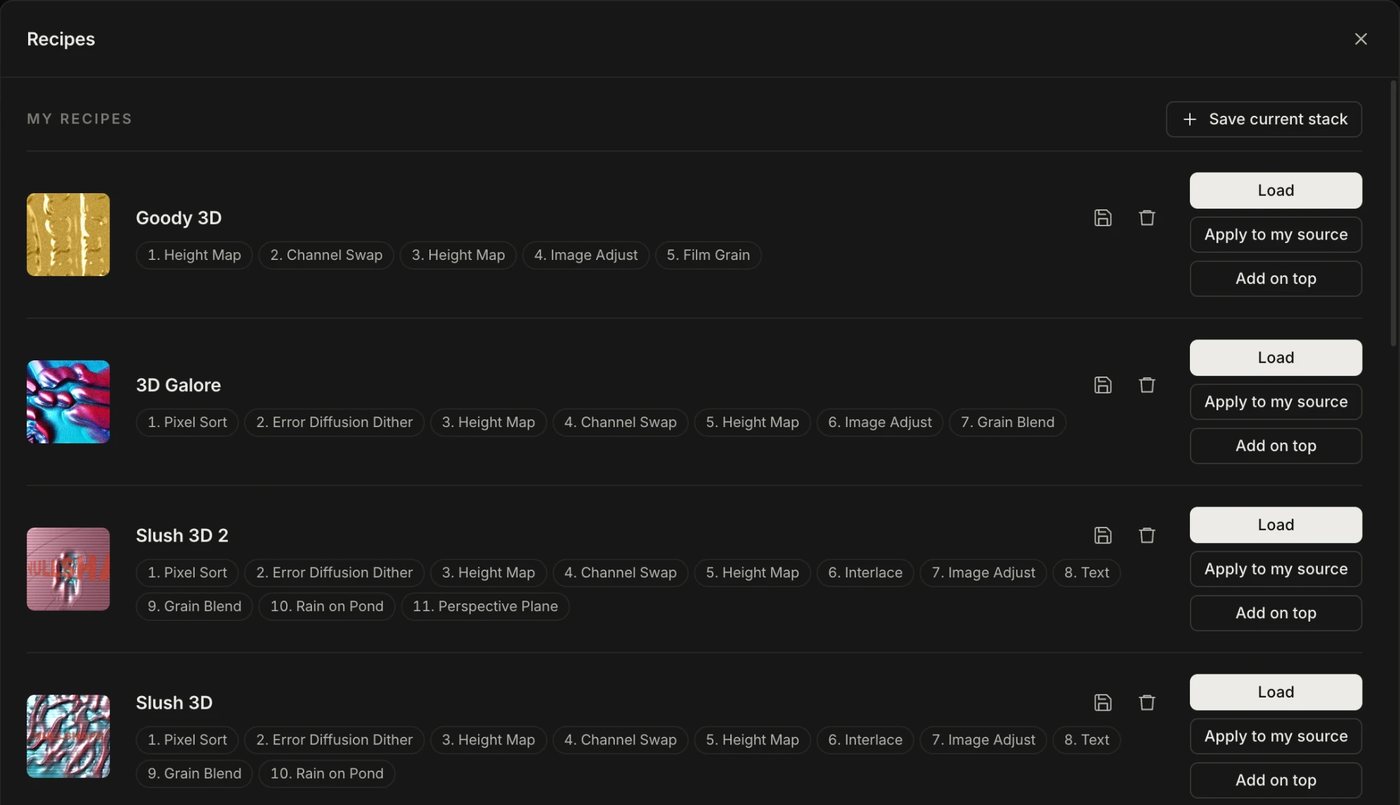
11Recipes
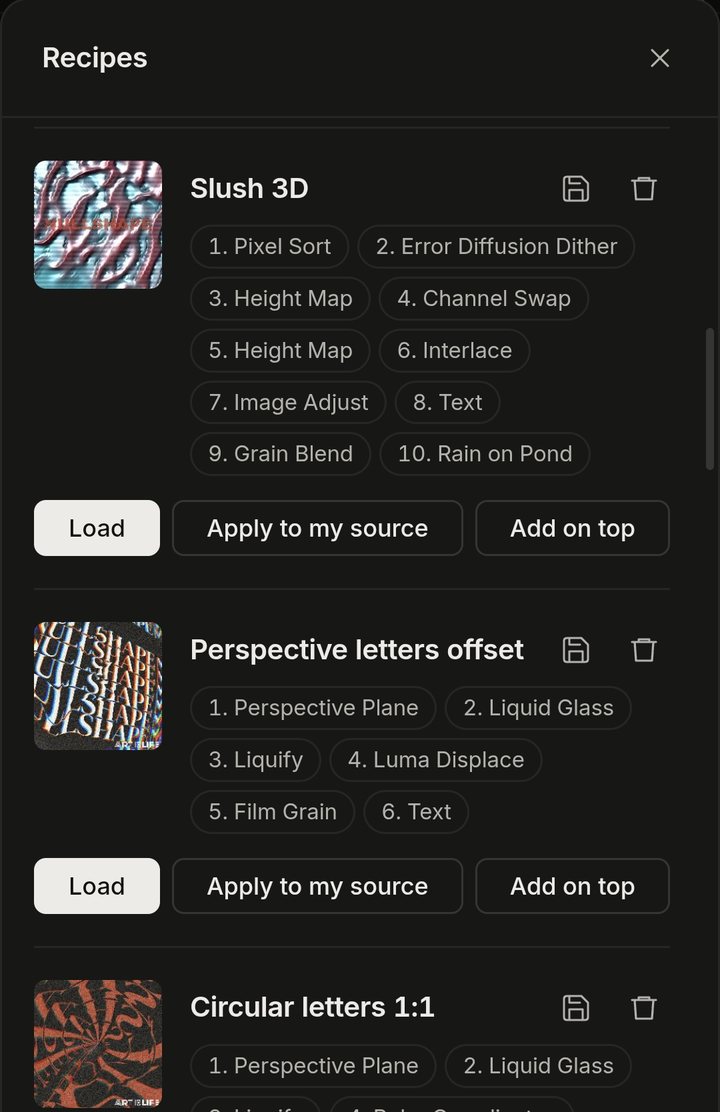
- A recipe is a saved stack of steps. Open Recipes (in the ⋯ menu) for ready-made ones and your own.
- Load its start graphic and steps, Apply to my source its steps on your picture, or Add on top after your own steps.
- Save yours with ⋯ → Save as recipe. Signed in, they follow you to every device.
12Save, export, any device
- Sign in (⋯ → Sign in) with Google or a link sent by email.
- Save online (Ctrl S) and open the same project on your phone or computer from My projects. Save as new… keeps the old one.
- Your work is also autosaved in your browser. Download project file and Open project file… work without an account. New project starts over.
- Saved projects with an old sync code? Account → Enter a sync code moves them in.
- Export image (Ctrl E): PNG (lossless) or JPG (smaller, with a quality setting), up to 4K, with or without titles. Download it, or Share / Save to Photos.
- Movie (MP4) exports from the movie editor (see Movie).
- Pro unlocks the Pro effects for export and lifts the limits on images, movies and online projects. ⋯ → Get Nullshape Pro.
- Something odd? ⋯ → Send feedback. It includes your device and browser, so we can fix it.
13Gestures on the picture
They change the selected step. A small hint at the top of the picture says what each gesture does for that effect.
Turn or pull the main setting. Drag the dots to move centres.
Make the effect, text or shape bigger or smaller.
Rotate it with two fingers.
13Keyboard shortcuts
There are several. The full list is behind the ⓘ button at the top of the app.
On a Mac, use Cmd for Ctrl and Option for Alt.